Cardzy / QR code business card

A QR code business card that saves your contact

Put one QR code on your business card. When someone scans it, your card opens on their phone and one tap adds you to their contacts, with your photo, your links and a note so they remember where you met.

Check your email

We sent you a link to build your card. It works once and expires in 15 minutes.

Free to start. No password, just a link in your email.
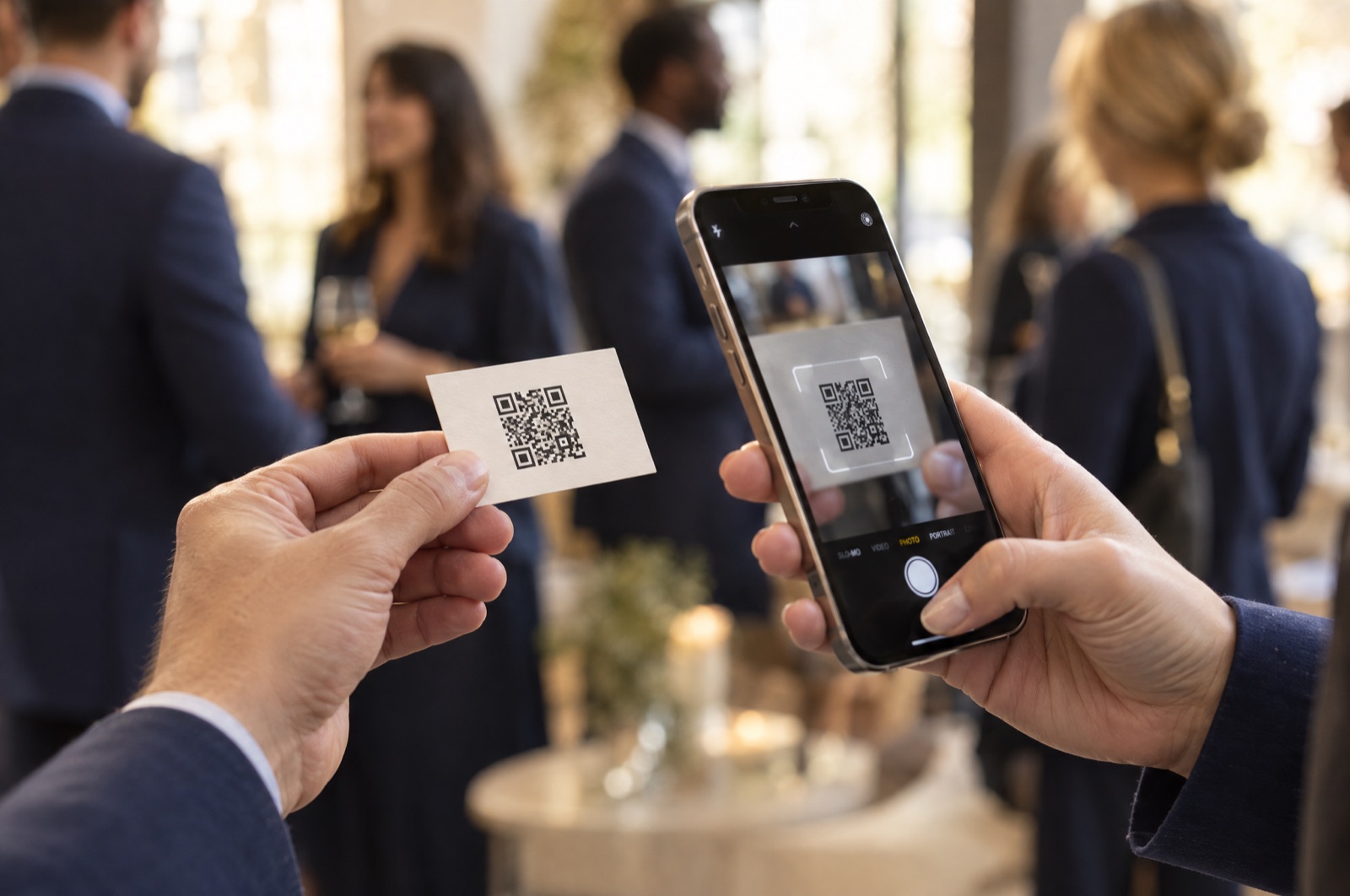
A hand holding a business card with a QR code while another hand scans it with an iPhone

Why a link beats a plain contact QR code

A vCard QR code, also called a QR code contact card, stores your details inside the code itself. It works, but it never changes. If you get a new title, number or website, every card you printed is out of date. A long block of data also makes a dense code that is harder to scan.

The QR code Cardzy gives you is short and simple because it only holds the address of your card. Your card holds the details, so you can change them any time. The card has a Save button that gives people the same standard contact file, and it adds things a plain vCard QR code cannot: your photo, follow buttons for your social accounts, and a note field so people can record where they met you.

How to add a QR code to a business card

1

Make your card

Sign up with your email, add your photo and details, and pick your card address.

2

Download your QR code

Your editor shows your QR code with a Download button. It saves as a high resolution PNG.

3

Place it on your design

Add the image to your business card file, or send it to your printer. Leave blank space around it and keep it at least 2 cm (0.8 in) wide.

Where to put your QR code

Printed business cards

Put it on the back of the card, or make it the whole back. Print it black on a light background.

Table signs and booths

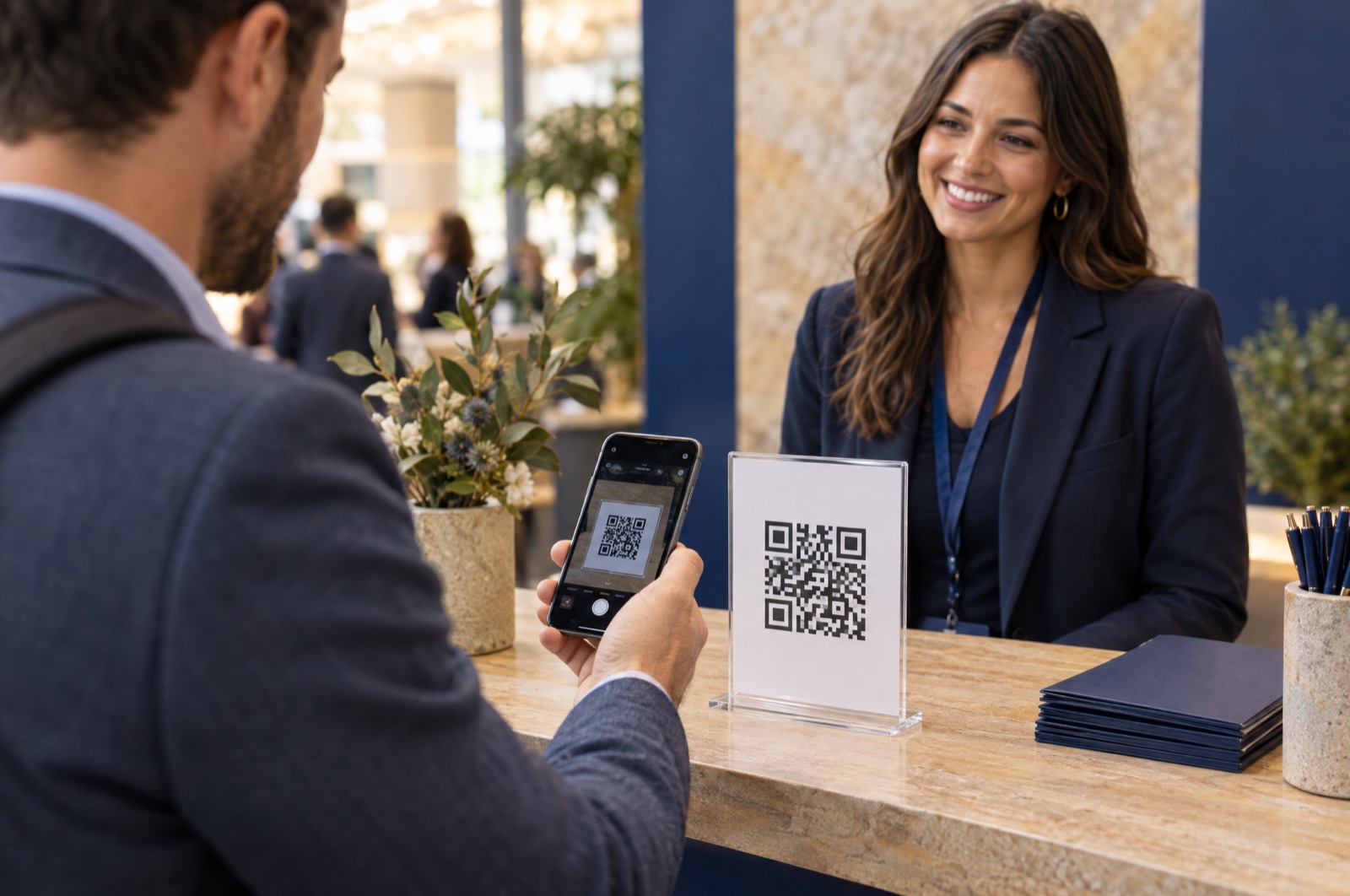
A QR code on an acrylic stand lets people save you without waiting for a conversation.

Conference badges

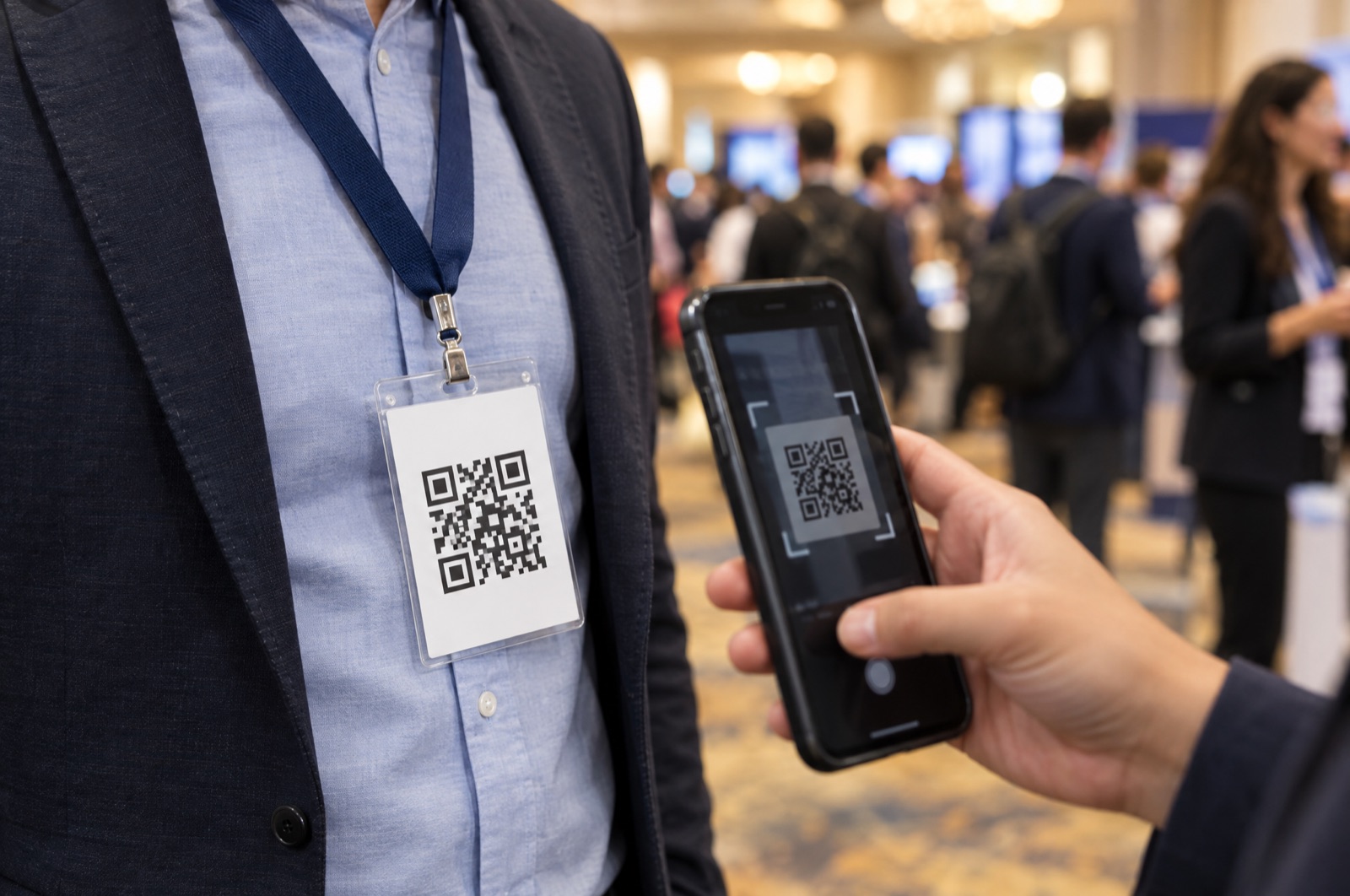
Add it to your badge so people can scan you in a crowded room.

Email signatures and slides

Use the same code in your signature, on a slide deck or on a flyer.

Your phone screen

Save the image as a favorite photo and open it when someone asks for your details.

Stickers and packaging

A small sticker on a leave-behind or a box turns a delivery into a new contact.

A QR code business card in the real world

A visitor scanning a QR code on a table sign at a trade show booth
On a table sign
A conference badge with a QR code being scanned by an attendee
On a badge

Tips for a QR code that scans every time

  • Keep strong contrast. Black on white is the safest choice.
  • Leave a quiet zone, a blank border, around the code.
  • Print it at least 2 cm (0.8 in) square, and larger for signs people scan from a distance.
  • Do not stretch it or place it over a busy photo.
  • Test it with an iPhone and an Android phone before you print a large batch.

Questions people ask

What is the difference between a vCard QR code and a QR code business card?

A vCard QR code stores your contact details inside the code, so it cannot be updated. A QR code business card from Cardzy points to your online card, so you can change your details later and add photos, links and notes without reprinting.

Can I update my details after I print the QR code?

Yes. The QR code holds only your card address, which stays the same. Change your title, photo or links in the editor and the card updates for everyone who scans it.

How big should a QR code on a business card be?

At least 2 cm (0.8 in) square with a blank border around it. Larger codes scan faster and from further away.

Do people need an app to scan it?

No. The camera app on iPhone and most Android phones scans QR codes. Your card opens in the browser.

Can I see how many people scanned my QR code?

Cardzy counts the views, saves and shared contacts on your card. You can also create a separate QR code for each event to see which one performs best.

Make your QR code business card

Enter your email and we will send you a link to start.

Check your email

We sent you a link to build your card. It works once and expires in 15 minutes.

Free to start. No password.